Unable to continue

Aifaceswap

FREE AI MULTIPLE FACE SWAP FOR PHOTOS, VIDEOS & GIFS

Media typePhotoVideoGIF
Number of facesSingle FaceMultiple Faces

Give each person their own reference face

Start with the people in your original media, then decide who should receive each new face. The podcast example pairs three detected people with three separate reference portraits. In the tool, upload your original, click Generate to analyze it, and choose from the detected people. Each selected person gets a separate photo slot. Check the original thumbnail beside each reference before submitting; uploading the right portraits in the wrong slots still creates the wrong assignment.

Three podcast hosts with a result photo and separate original-to-reference face pairings.

Change selected faces. Leave others out.

You do not have to replace everyone in a group. In the café comparison, the first and third people receive new faces while the middle person is marked Keep. To make that kind of edit, select only the people you want to replace; unselected people are not included in the swap request. If you change your mind, deselect that person rather than just removing their reference photo. After generation, inspect the whole result, including the people you did not select.

Café group comparison replacing the first and third faces while keeping the middle person unchanged.

One idea. Three ways to share it.

Choose the format of your original media, not the format of your reference portraits: those are still photos in every mode. A photo suits a group portrait or birthday picture. Video suits a scene with movement, while a GIF suits a short reaction you want to repeat. Explore photo, video and GIF face-swap ideas through the ceramics scene, pairing each selected person with a reference portrait.

Two ceramic artists with replacement portraits, generated face-swap results and Photo, Video and GIF format labels.

A BETTER SWAP STARTS WITH THE INPUTS

When something looks wrong, first identify whether the problem is detection, pairing or the reference photo. Changing the input that caused the problem is more useful than repeating the same request.

Try multiple face swap

A person is missing from the list

Check whether their face is clearly visible in the original. A distant, blurred or heavily covered face may be harder to detect. Try an original with a clearer view of that person. Changing their replacement portrait does not fix a person who was never detected, and the current tool does not offer a manual add-person control.

The right face went to the wrong person

Review each original-person thumbnail and its assigned reference photo. Do not rely on the order in which you uploaded the references. For a group with similar-looking people, work through the pairs one at a time. In a video, a person's starting position is not a reliable description of where they will be throughout the scene.

The reference is not a clear portrait

Use one recognizable face per reference photo, with visible features and little blur. Avoid choosing a group picture and expecting the tool to know which reference person you mean. A less filtered portrait with a comparable face angle is a better starting point than a tiny, heavily edited image. Change one reference at a time so you can compare the results.

A face is turned away or covered

Hands, hair, glasses and overlapping people can hide details needed for a convincing replacement. Try an original with a clearer view when possible, and inspect face edges and expressions afterward. For moving media, follow each selected person through turns and moments when their face is partly covered.

One frame looks good, but the clip does not

Watch the video or GIF through, especially where people cross, turn or reappear. Check who received each identity as well as the blend. Start with a short, representative clip before a larger attempt, and note the moments you need to inspect. When the file is ready, review every selected person through the full sequence before sharing.

CHOOSE YOUR MULTIPLE FACE SWAP TOOL

Use the same person-by-person approach across three media types. Pick the tool that matches your original file; you can supply a different reference portrait for every selected person.

Three hikers at a mountain overlook, with an original group photo, three reference portraits and a face-swapped result.

AI Multiple Face Swap for Photos

For group portraits, team pictures and shared celebrations. Pair up to four selected people with individual reference faces, then inspect the still result at your own pace. Photos and reference portraits accept JPG/JPEG, MPO, PNG, WebP, HEIC, HEIF, AVIF, BMP or TIFF files up to 20 MB each. The hiking comparison shows how separate portraits map to three people in one scene.

Two friends at a bowling alley, with matching before-and-after photos and separate face references.

AI Multiple Face Swap for Videos

For interviews, performances and other clips with more than one person. Upload a video up to 100 MB and 60 seconds long, choose the detected people and give each a reference portrait. Review turns and movement in the actual output. Give your next group clip a different cast. Use the bowling illustration to plan a separate reference face for each selected person.

Four jazz musicians with an original rehearsal photo, four replacement portraits and a generated face-swap result.

AI Multiple Face Swap for GIFs

For shared reactions and short animated moments. Start with a GIF up to 100 MB, then assign a photo to each selected person. Watch the complete animation to check the identities across the loop. Turn a shared reaction into your group’s inside joke. Take inspiration from the jazz scene and give each selected person their own reference face.

HOW TO SWAP MULTIPLE FACES ONLINE

The first Generate analyzes your original. After you choose people and add their reference photos, the next Generate submits the replacements.

Try multiple face swap
  1. Upload and analyze your original

    Choose Photo, Video or GIF and keep Multiple Faces selected. Upload one original file, then click Generate. Wait for the analysis to show detected people before assigning any reference faces.

  2. Choose people and pair their faces

    Select one to four detected people. Add a clear reference photo for each selected person and check every pair. Leave anyone you do not want to replace unselected; every selected person needs a reference before you can continue.

  3. Generate, review and download

    Click Generate again to process your choices. Compare the result with the original and reference faces; watch moving media all the way through. Download the watermark-free file while the completed result is available.

WHAT OUR USERS SAY

Different projects, different priorities: feedback on choosing people, pairing references and reviewing the finished result.

5 / 5 from the 8 reviews below

Finally, a group face swap that lets me give everyone a different face! I had a very specific idea for a team post, and using the same reference for the entire group just wouldn’t have worked. Being able to match each person individually was exactly what I needed. What started as a simple content idea became something our whole team could have fun with. This is the kind of tool I actually get excited to open.

Emily CarterSocial Media Manager

I love having control over who gets swapped in a video. Sometimes changing just two people makes the scene work, and replacing everyone would ruin the joke. That selective approach is what makes this tool so useful to me. It gives me room to be creative without making the setup unnecessarily complicated. I came for the video face swap, but the ability to handle multiple people separately is the feature that really won me over.

Marcus ReedVideo Editor

The GIF feature is ridiculously fun. I wanted something more personal than sending the same reaction GIF everyone has already seen, so I used different reference faces for a little group scene. Suddenly, it was our inside joke instead of just another GIF. That’s what I love about this—it gives a familiar idea a personal twist. I already have a list of birthdays and group-chat moments I want to make things for.

Ashley BennettContent Creator

What sold me was being able to change only the people I selected. I had a group image where most of it already worked; I didn’t want an effect applied to everybody. Choosing the specific faces gave me a much more useful way to approach the edit. It’s a simple distinction, but creatively, it makes a big difference. I’d much rather have that kind of focused control than a page full of effects I don’t need.

Daniel BrooksGraphic Designer

My favorite part is the person-by-person approach. A group photo isn’t just one face repeated several times, and I like that I can choose a separate reference for each person. It makes the whole creative process feel more thoughtful. I can look at the group, decide what I want to change, and set up those choices individually. For playful photo projects, that’s a lovely balance: approachable enough to experiment with, but not so automatic that I lose all say in the result.

Jessica MorganPhotographer

The no-sign-up option got me through the door. I’m tired of creating an account before I can even decide whether a tool is useful. Here, I can start with the free credits and explore an idea without that extra commitment. And the watermark-free downloads? A huge plus. Those things make the experience feel welcoming rather than pushy. I’m much more interested in coming back to a product that gives me a straightforward way to try it first.

Ryan MitchellSmall Business Owner

Not everyone in a group photo wants to be part of the joke, so being able to choose who gets swapped is a feature I genuinely appreciate. We can include the people who are excited about it and leave everyone else out of the edit. Giving each participant their own reference face makes it feel even more personal. I love tools that help turn a group idea into something people can actually enjoy together—this is a really fun example.

Lauren HayesCommunity Manager

We only meant to make one funny birthday picture for our roommate. Then everybody started suggesting different faces, and suddenly we had enough ideas for the whole friend group. The best part is that we don’t all have to use the same reference or even replace everyone in the picture. It gives us room to make the joke our own. Free credits, no account to set up, and no watermark covering the image—that’s a pretty great combination for a spontaneous idea.

Kevin ParkerCollege Student

MULTIPLE FACE SWAP
QUESTIONS, ANSWERED

What is multiple face swap, and how is it different from batch face swap?

Multiple face swap replaces selected faces within one photo, video or GIF. Each selected person can receive a different reference face. Batch face swap means processing several separate files; that is a different workflow. This tool starts with one original file per task. If your original has just one person to replace, you can also use the single-face photo tool.

Is it free, and do I need to sign up?

You can start without signing up. The free allowance is 10 credits per day, refreshing at 9 a.m. New York time. A multiple-face photo task uses 3 credits, a video task 5 and a GIF task 3. The first Generate reserves the credits needed for the task while analyzing your original. The second Generate uses the same reservation, so you are not charged twice. Credits are charged when the task succeeds; if the task fails, the reservation is released. The number of tasks you can make depends on the formats you choose and your available balance. Device and linked-account usage count toward the same allowance, so signing in does not create a second daily allocation. If you need more, see credit packs and pricing.

How many people can I replace in one task?

You can select one to four detected people for replacement in one task. The limit counts the people you choose to change, not every person visible in the original. Choose from the returned thumbnails. If someone is missing, try a clearer original with a larger, more visible face; there is no manual add-person control.

Can I change only some people in a group photo?

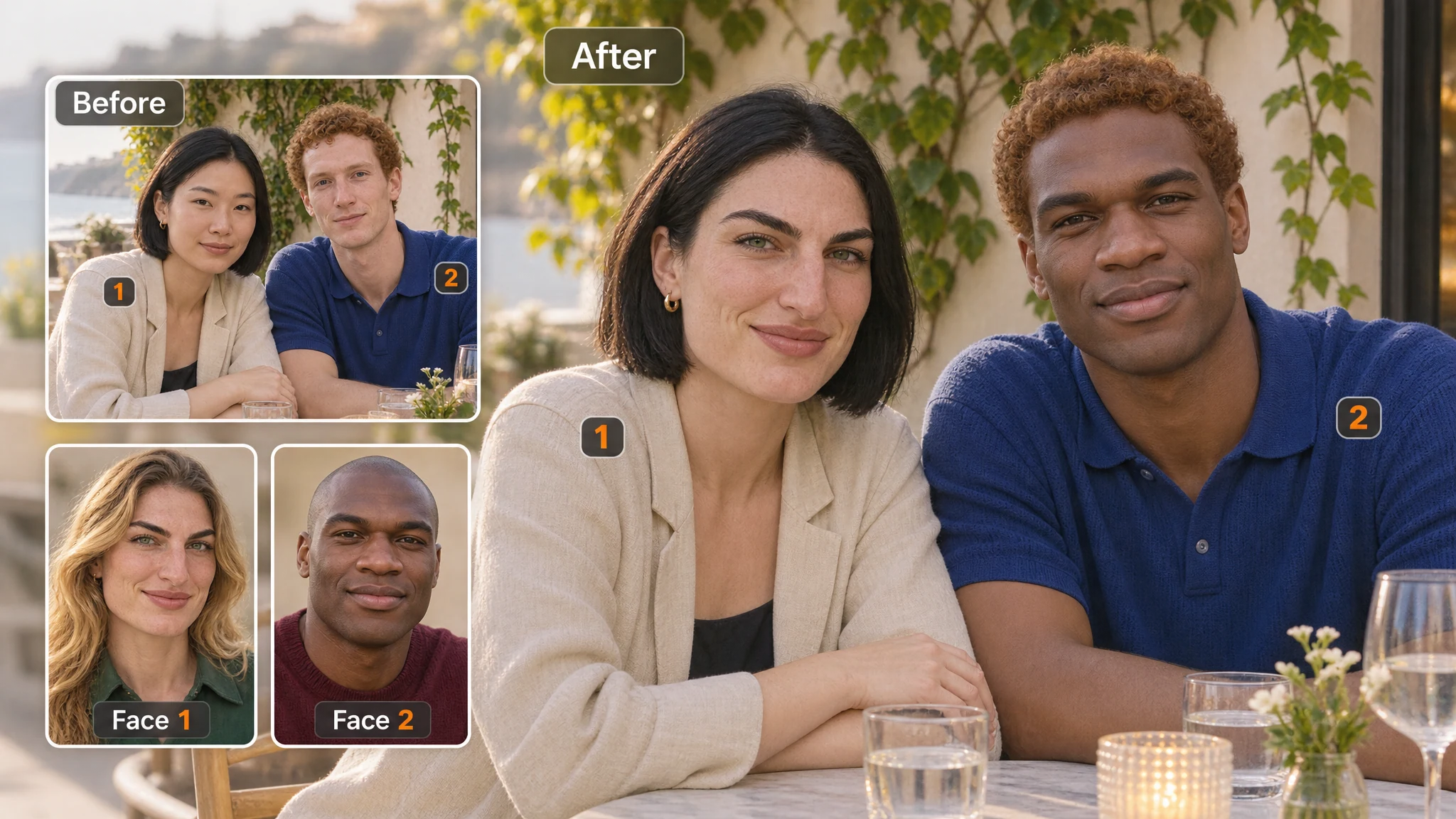
Yes. Select only the people you want to replace and supply a reference photo for each. For a three-person group, you could replace the first person with one reference, skip the second, and replace the third with another. To leave a selected person out, deselect them; removing their reference alone leaves an incomplete selection. Unselected people are excluded from the replacement request, but you should still inspect the full generated image or clip.

Can I use the same reference face for more than one person?

Yes. Choose the same reference photo separately in each person's slot. There is no one-click “apply to everyone” control. You can also mix references: two people can share one reference while another receives a different one. Check each pair before processing, then compare each selected face with its reference in the finished result.

Which file formats, sizes and video lengths can I upload?

Original photos and replacement portraits support JPG/JPEG, MPO, PNG, WebP, HEIC, HEIF, AVIF, BMP and TIFF, up to 20 MB per file. Original videos can be up to 100 MB and 60 seconds long; processing compatibility depends on the video codec. Original GIFs can be up to 100 MB. Use still photos as references in every mode. You can upload the original file even when a browser preview is unavailable.

Why is a person missing from the detected faces?

The person may be too small, blurred, turned away or obscured for detection. Try a clearer original and analyze it again. The replacement portrait is supplied after detection, so changing that portrait alone will not make a missing original person appear in the list. If the intended person is not listed, you cannot assign them a replacement in that task.

How can I improve a result that does not look right?

First check the person-to-reference pair. If the assignment is correct, try a clearer single-face portrait with less filtering and a more comparable angle. Change one input at a time and compare the same face or moment in the result. For video and GIF, review movement and occlusion across the whole clip. Still having trouble? Contact support@aifaceswap.tools.

Do downloads have watermarks, and when should I save them?

Downloads have no watermark. Completed results are available for one hour, so save a copy rather than relying on History as permanent storage. See the Privacy Policy for upload and service-data retention. Download and check your file before sharing it.

What should I consider before sharing a face-swapped image or clip?

Use images and footage you have permission to edit, and get the people involved comfortable with the intended use. Present a face swap as an edit rather than evidence of something that happened. Avoid impersonation, harassment or misleading endorsements. An edited output does not by itself give you rights to someone's likeness or the source material; for background, see the FTC's guidance on AI-enabled impersonation scams.