Unable to continue

Aifaceswap

FREE AI VIDEO FACE SWAP

Media typePhotoVideoGIF
Number of facesSingle FaceMultiple Faces

A SMALL CHANGE. A PERSONAL TAKE.

Start with a scene. Give it a different face.

Pick a clip with the setting, gestures and timing you already want. A face swap changes who the person looks like; it does not create a new performance from a photo. Start with your own footage or a clip you have permission to edit. Use these visual guides to choose your reference portrait and review the finished clip.

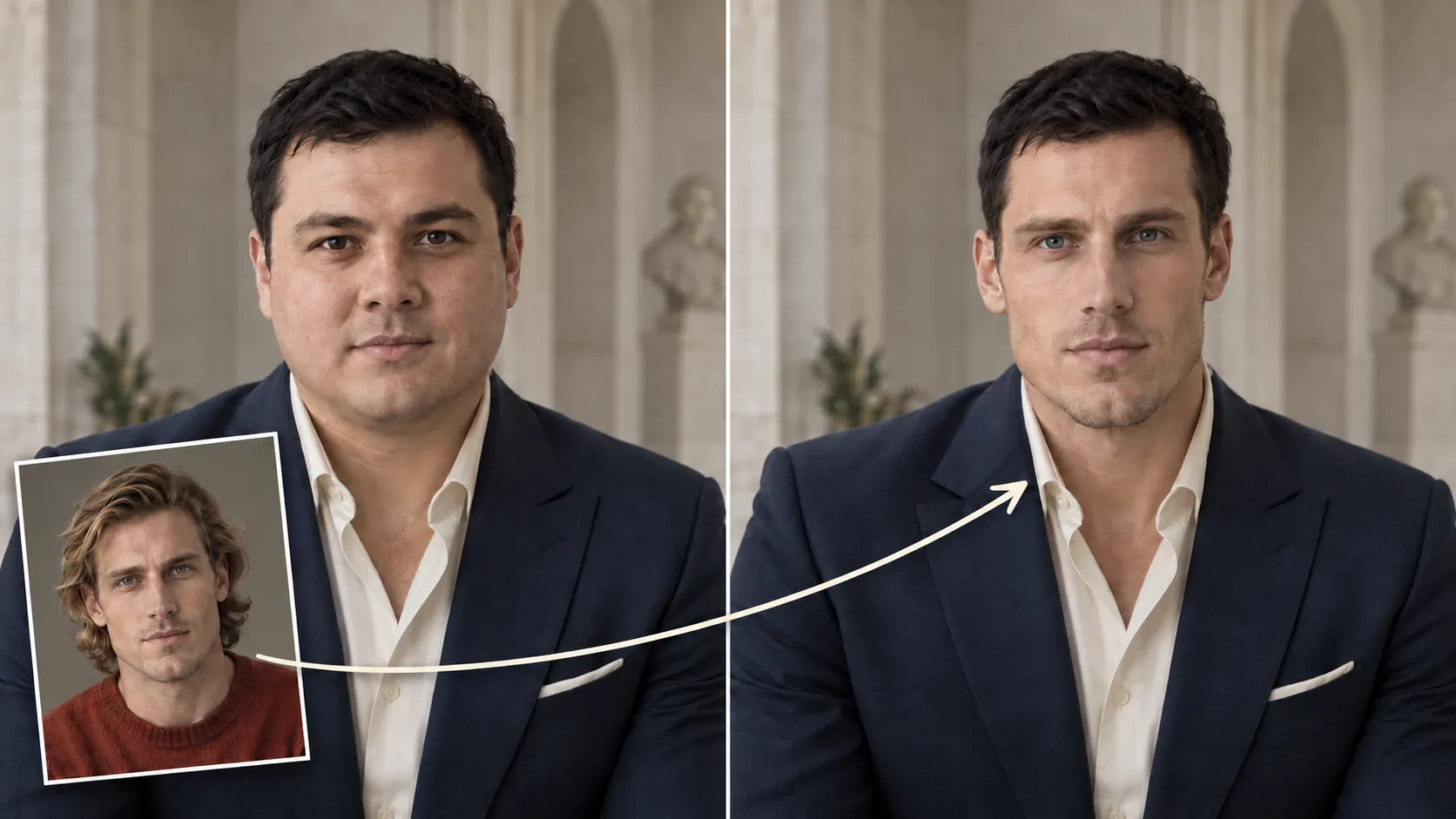
Video face-swap illustration showing original media and source-face inputs.

Choose a portrait. Keep the features clear.

The portrait is the face you want to use, not another frame of the original person. Choose a sharp photo with visible features and lighting that lets you judge the face clearly. A similar angle can help when the person in the video turns sideways. Add it to the Face Photo field—there are no layers to arrange or individual frames to edit.

Source portrait selection illustration beside a video scene preview.

One selected person. Not everyone in the shot.

Single Face uses one reference for one person, even when others appear in the clip. If the tool asks you to choose, use the detected-person thumbnail to identify your target rather than relying on their position in one frame. People can move around, so check who you selected before continuing. To give several people different faces, use AI multiple face swap for videos.

Video face-swap illustration with a source portrait and motion preview.

Watch the movement. Not just one frame.

Play the result from beginning to end. Look at head turns, blinking, hands passing over the face and moments when the person moves closer to the camera. The close-up highlights details to review, including the eyes, mouth and face edges. Check the downloaded MP4 and its sound before you share it.

Video result preview illustration with a source portrait and timeline.

LESS SETUP. MORE ROOM FOR THE IDEA.

A video face swapper should make the setup clear, not turn one creative idea into a whole editing project. Here is what you need to start and what to save when you finish.

A short video, ready to upload

Choose a clip up to 60 seconds and 100 MB. MP4 is a practical starting point; processing compatibility depends on the video codec. You can upload the original file even when a browser preview is unavailable.

One clear reference photo

Use a still JPG/JPEG, MPO, PNG, WebP, HEIC, HEIF, AVIF, BMP or TIFF portrait up to 20 MB. Choose an unobstructed face, even lighting and an angle similar to the face in the clip.

Three credits for one video task

You can start without signing up. A single-face video task uses 3 credits from the daily allowance of 10 free credits, shared across tools. It refreshes at 9 a.m. New York time. If you need to choose a person, continuing that task does not mean paying twice.

Your clip, without a watermark

Download the finished MP4 without a watermark and with the original audio if the source has sound. Save it within one hour of completion. HD is optional and off by default; it is not a guarantee of a fixed resolution or a way to recover detail missing from the original.

GIVE A FAMILIAR MOMENT A PERSONAL TWIST

These still illustrations offer starting points for a personal clip. Use footage and portraits you have permission to edit, and involve the people whose likenesses you use.

Creator scene face-swap illustration with a source portrait and result preview.

Try a different on-camera look

A simple talking-to-camera scene leaves plenty of room for expression. Use a short, clearly lit clip and a reference portrait, then see how a familiar introduction feels with a different face. The original delivery and voice stay part of the scene.

Character scene face-swap illustration with a source portrait and result preview.

Step into a character’s moment

Choose a scene whose glance, pause or reaction already fits your idea. A personal recast can make a film-club sketch or a friendly joke feel different without rewriting the action. Face replacement does not change the dialogue or clone the speaker’s voice.

Playful scene face-swap illustration with a source portrait and result preview.

Make a playful clip for friends

A relaxed outdoor moment can become a personal reply or a little surprise for someone who wants to join in. Keep the idea light, review the whole result and share it as an edited video—not as something the person actually recorded.

HOW TO SWAP A FACE IN A VIDEO

Start with a video and one still photo. There is no editing app to install and no timeline to learn.

Swap a face in your video
  1. Upload your video

    Keep Video and Single Face selected. Choose an original clip up to 60 seconds and 100 MB.

  2. Add a reference photo

    Upload one clear still portrait up to 20 MB. This is the face you want to put into the clip. Check both files before clicking Generate.

  3. Generate, review and download

    If a person-selection step appears, choose one person and click Generate again to continue the same task. Play the finished video, then download the watermark-free MP4 within one hour of completion.

SIMPLE TO START. THEIR WORDS, NOT OURS.

What people value about making a personal video without a full editing suite.

5 / 5 from the 8 reviews below

Exactly the kind of video tool I like—focused and easy to understand. I don’t need a full editing suite just to swap a face in a clip. The straightforward workflow is the biggest selling point for me. More room to be creative, less time figuring out menus.

Caroline MercerBrand Strategist

Not having to install software is a huge plus. I already have enough editing applications on my computer, so being able to do a video face swap in the browser is genuinely convenient. I appreciate a tool that keeps one task simple instead of turning it into an entire project.

Nathan BrooksReal Estate Photographer

So much more approachable than I expected! Video editing usually feels intimidating, but this gives me a clear place to start. I love that I don’t need to understand layers or work through a complicated timeline just to personalize a clip. A really fun creative tool.

Sophie CaldwellFlorist

The no-sign-up option deserves some appreciation. Nothing kills a spontaneous idea faster than an account form and an email verification step. Being able to get started without that extra friction is refreshing. It keeps the experience about making something entertaining, not managing another login.

Lucas HarringtonRadio Presenter

Watermark-free downloads are an excellent touch. The video should be about the idea, not a logo stamped over it. I appreciate that this is part of the experience rather than an afterthought. It makes the tool much more appealing for personal creative projects.

Victoria LaneArt Director

Love having free credits to try it out. I’d rather explore a tool myself than commit based on a promotional demo, and this gives me that opportunity. Combined with the browser-based setup, it’s a welcoming way to get started with AI video face swapping.

Aaron DelgadoPersonal Trainer

A video adds so much personality to the face-swap idea. You get the gestures, expressions, and timing of a whole moment rather than just a still image. That’s what makes this format so entertaining. A lovely option for anyone who enjoys playful, personalized clips.

Penelope WardMuseum Educator

My favorite thing is how focused it is. Choose a video, add a reference photo, and work on the face swap—without getting distracted by dozens of unrelated editing features. That simplicity is a strength. Sometimes a tool that does exactly what you came for is the best kind.

Dylan ReevesMusic Teacher

VIDEO FACE SWAP
QUESTIONS, ANSWERED

Can I use video face swap for free without signing up?

Yes. You can use the tool online without creating an account or installing software. Start with the shared daily allowance of 10 free credits and download completed videos without a watermark. Human verification may be required before processing.

How many credits does a video face swap use?

A single-face video task costs 3 credits. You get 10 free credits per day, shared across tools, refreshing at 9 a.m. New York time. Guest use and a linked account share that allowance; signing in does not create a second daily allocation. If you need to choose a person, continuing uses the same task reservation rather than a second charge. Failed tasks release their reservation; successful processing settles the charge.

Which video files and reference photos can I upload?

Upload one video up to 60 seconds and 100 MB. MP4 is a useful starting point; processing compatibility depends on the video codec. The still reference photo supports JPG/JPEG, MPO, PNG, WebP, HEIC, HEIF, AVIF, BMP and TIFF, up to 20 MB. You can upload the original file even when a browser preview is unavailable. For an animated original and GIF output, use GIF face swap.

How do I swap a face in a video with my own photo?

Add your original video and a clear photo of the face you want to use, then click Generate. If detected-person thumbnails appear, choose one and click Generate again to continue. Watch the full result before downloading. If your original is a still picture instead of a clip, use photo face swap.

What happens if my video has more than one person?

Single Face replaces one selected person using one reference photo. It does not mean that only one person may appear in the original video. If selection is needed, choose the intended person from the detected thumbnails. Only the selected person is submitted for replacement. Review that person and the overall scene throughout the finished clip.

When should I use the multiple-face video tool?

Use the multiple-face video tool when you want different people in the same clip to have their own reference faces. This page is for one person and one portrait. Neither mode is batch processing of several video files. The multiple face swap overview explains the group photo, video and GIF options.

Why can’t the tool find the person I want to replace?

The face may be too small, blurred, turned away or covered. Try a clip with a clearer view of that person. A new reference photo cannot fix someone missing from the original video analysis. There is no manual add-person control for a face that was not detected.

How can I reduce blur or flickering during movement?

Check that you selected the intended person, then inspect the moments where the face looks wrong. Fast turns, heavy compression and hands crossing the face can make replacement harder. Try a clearer source or a sharp, evenly lit portrait at a more similar angle. After a change, review the full clip, including turns, expressions and moments when the face is partly covered.

What does the HD option do?

HD is an optional video processing setting, off by default. It does not guarantee 1080p, 4K, lossless output or recovery of detail absent from the original. The task still uses 3 credits in single-face video mode. Start with clear footage and judge the downloaded result rather than relying on the setting to fix a difficult source.

What format is the download, and does it keep the sound or add a watermark?

The result downloads as an MP4 without a watermark. It keeps the original audio if your source has an audio track; a silent clip stays silent. This tool does not change voices, rewrite speech or add new dialogue. The three demonstration videos on this page have no audio track, so they illustrate the visual result rather than sound preservation.

Can I restore a task after refreshing, and how long can I download it?

An accepted running task or a task waiting for person selection can be restored after a refresh when the service recognizes the same user or guest. Files you have only selected locally do not survive a full reload. Save completed results within one hour. History is not a permanent archive and does not restore completed downloads after a refresh. See the Privacy Policy for upload and service-data retention.

What should I check before sharing, and where can I get help?

Use clips and portraits you have permission to edit, with the consent of the people whose likenesses you use. Watch the full video, check the audio and make clear that the result is edited when you share it. Do not imply a real event, identity or endorsement. Files are processed online, so choose material you are comfortable uploading. For help, contact support@aifaceswap.tools.

YOUR FACE. A DIFFERENT TAKE.

Pick a moment, add your portrait and give the scene a different face. Start with free daily credits, no sign-up required, and save your video without a watermark.