Unable to continue

Aifaceswap

FREE AI PHOTO FACE SWAP

Media typePhotoVideoGIF
Number of facesSingle FaceMultiple Faces

Two photos. Two different jobs.

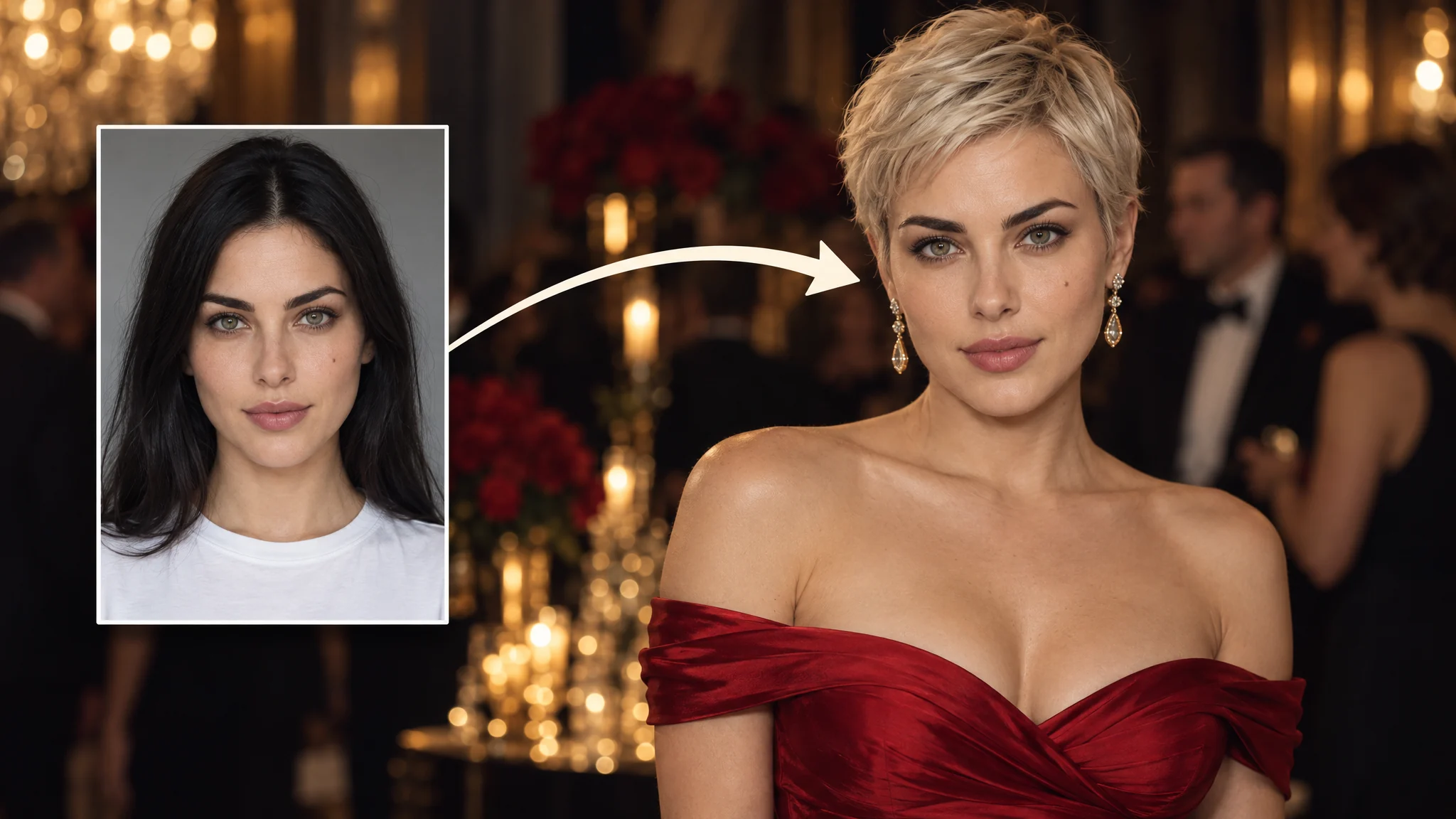
Upload the picture you want to edit as Original Photo, and the portrait with the face you want to use as Face Photo. Our studio example places the reference beside the larger scene to make that distinction clear. Choose an original that already has the pose, clothes and background you want. Face swap is not an outfit changer or a way to create a new setting.

Selected reference portrait beside a larger studio photo preview.

Compare the face, not just the first impression.

The library example shows the original and generated face side by side in the same scene. When reviewing your own result, open the original alongside it and compare the eyes, mouth, face angle and skin tone. Look at the whole picture, too, including the face edges, surrounding lighting and blending with the original scene.

Library portrait before and after a face swap, with the reference face and a fixed comparison divider.

Take a closer look at the details.

Our outdoor portrait includes a close-up around the face and beard. Use that kind of closer inspection before sharing: check the jawline, hairline, glasses and any features partly covered by hair or hands. If something looks off, first confirm that you chose the intended person. Then try a clearer reference with a more similar angle, changing one input at a time so you can judge the difference.

Generated outdoor portrait with a reference face and a close-up of the beard and jawline.

A LITTLE PREPARATION. A CLEARER START.

The most useful choices happen before you generate. Separate the scene from the reference, use readable faces and know what the download includes.

Swap a face in your photo

One person, one reference face

Single Face mode replaces one person per task. The original can include other people; select the intended person if the tool asks. To give several people different references in the same picture, use AI multiple face swap for photos instead.

Start with a clear portrait

Pick a reference with one visible face, even lighting and little blur. A similar angle gives you a sensible starting point. Prioritize a sharp, evenly lit face over file size alone.

Photos up to 20 MB each

Both the original and reference photo support JPG/JPEG, MPO, PNG, WebP, HEIC, HEIF, AVIF, BMP and TIFF. You can upload the original file even when a browser preview is unavailable. Keep a clear copy rather than repeatedly resaving a compressed image. For moving originals, choose the video face swap tool or GIF face swap tool; this page is for still photos.

Two credits for a single-face photo

Each successful single-face photo task uses 2 credits. The shared daily allowance gives you 10 free credits to explore the tools, without requiring an account. Paid credit packs are available if you need more.

Your PNG, without a watermark

Download the finished image as a watermark-free PNG, including when you use free credits as a guest. Save it within one hour of completion. The result is not kept as a permanent online album, so keep your downloaded copy and the source photos you want to compare.

GIVE A FAMILIAR PICTURE A NEW CHARACTER

Start with a scene you have permission to edit. Explore these generated portraits for celebration pictures, character concepts and a new look in a familiar setting.

Generated formal portrait in a navy suit with the reference face shown beside it.

Try a different portrait look

The dark-suit example uses a separate reference face for a formal portrait idea. Choose a source picture with the framing and clothes you want, then inspect the face at full size. Do not use an edited portrait to misrepresent your identity or credentials.

Generated outdoor portrait in a dark suit with a separate reference face.

Make a playful celebration picture

Our outdoor suit portrait is one starting point for a party image or a personal greeting. Use your own face, or get agreement from the person whose portrait you use. Keep the original and make clear that the shared picture is edited.

Generated character portrait holding a helmet, with a reference face in the corner.

Explore a character concept

The helmet portrait puts a reference face into an existing creative scene. Try an idea for an avatar or a lighthearted character picture without building a layered editing project. The face changes; the helmet and setting come from the original photo.

HOW TO SWAP A FACE IN A PHOTO

Keep Photo and Single Face selected in the tool above. You need an original picture and a reference portrait.

Swap a face in your photo
  1. Add your two photos

    Upload the scene to Original Photo and the replacement portrait to Face Photo. Check that the reference shows the face you intend to use. Each photo can be up to 20 MB.

  2. Generate and choose a person if asked

    Click Generate. If the tool shows detected-person thumbnails, select the person you want to replace and click Generate again. This continues the same task with your uploaded reference; you do not need to upload it again.

  3. Check and download the result

    Review the face and surrounding image when the result is ready in History. Download the PNG within one hour. There is no watermark, and no manual layer editing is required.

WHAT PHOTO FACE SWAP USERS SAY

Feedback on the browser workflow, free daily credits and watermark-free photo downloads.

5 / 5 from the 8 reviews below

Refreshingly simple! I love being able to personalize a photo without opening a complicated editing program. The whole experience is focused on the face swap rather than a hundred unrelated features. Exactly what I want when I’m exploring a quick creative idea.

Hailey DawsonPortrait Artist

This makes photo face swapping feel approachable, even if editing isn’t your thing. No layers to manage or complicated tools to learn—just a straightforward way to try an idea. That simplicity is a real strength. Sometimes less really is better.

Vincent ColeAdvertising Copywriter

The watermark-free download is a huge plus. I want the photo to stand on its own, not have a logo competing with it. It’s a small detail that makes the tool much more appealing. Love that the attention stays on the picture.

Stella MorganJewelry Designer

Being able to work directly in the browser is excellent. I don’t need another application installed just to experiment with a photo. A dedicated tool that keeps things focused is much more useful to me than an oversized editing suite.

Preston EllisArchitect

So much less intimidating than traditional photo editing! I appreciate having a clear, simple way to get started without learning a whole new skill. It puts the fun part first, which is exactly how a creative tool like this should feel.

Naomi FletcherPastry Chef

No account required is a fantastic touch. I’d much rather explore a tool than spend the first few minutes creating a password and verifying my email. Removing that extra step makes the experience feel welcoming right from the start.

Blake SuttonProduct Designer

Love the freedom to try different photo ideas without turning each one into a full editing project. A face swap can give a familiar picture a completely different personality. Having a simple tool dedicated to that is genuinely appealing.

Elise ThorntonWedding Stationer

The free daily credits make this easy to explore without committing upfront. I appreciate being able to try a creative tool for myself first. Add browser access and watermark-free downloads, and it’s a combination that gives me plenty of reasons to keep experimenting.

Roman CastilloCulinary Instructor

PHOTO FACE SWAP
QUESTIONS, ANSWERED

Is photo face swap free, and do I need to sign up?

Yes, you can start without an account using 10 free credits per day. A single-face photo task uses 2 credits, so an otherwise unused allowance covers five successful photo tasks. Credits are shared across tools and refresh at 9 a.m. New York time. Device and linked-account use share the allowance; signing in does not give you a second allocation. Verification may be required. See pricing for additional credits.

Which photo formats and file sizes can I upload?

Upload JPG/JPEG, MPO, PNG, WebP, HEIC, HEIF, AVIF, BMP or TIFF files, up to 20 MB each. The limit applies separately to Original Photo and Face Photo. Choose a still reference portrait with clear facial features and even lighting. You can upload the original file even when a browser preview is unavailable.

Can I replace one face in a photo with several people?

Yes. Single Face means one person is replaced, not that only one person can appear in the original. If asked, choose the intended person from the detected thumbnails. Only the selected person is submitted for replacement. Review the face and the overall scene in the finished image. To replace several people separately, use the multiple-face photo tool.

Why does the tool ask me to choose a person?

The tool may need you to identify the person to replace after analyzing the original. Choose the correct thumbnail and click Generate to continue the same task. Your reference is already attached. If the person is missing, try a sharper original with their face larger and less covered; there is no manual add-person control.

What makes a good reference photo?

Choose one recognizable face with visible eyes and mouth, little blur and minimal filtering. Try to match the angle of the face in the original. Avoid a reference group shot that leaves the intended identity unclear. The reference supplies the replacement face, while the original provides the pose, clothing and setting.

How can I improve an unnatural-looking result?

Check the selected person and reference first. Then look for strong angle differences, harsh shadows, covered features or compression. Try changing one input and compare it with the previous result. For help with a task, email support@aifaceswap.tools.

Does the photo download have a watermark?

No. Photo results download without a watermark, whether you are a guest, use free daily credits or use paid credits. You do not need to sign up just to remove a logo from the result.

What format and resolution can I download?

The photo result downloads as a PNG. Photo mode has no HD switch, and we do not promise a fixed output size or 4K resolution. Check the downloaded file's dimensions if you need a particular size for printing or publishing.

When are credits charged, and what if a task fails?

Starting a single-face photo task reserves 2 credits. If you are asked to select a person, continuing uses that same reservation; it is not a second charge. Credits are charged when the task succeeds. If it fails, the reservation is released. A result that completes but does not look the way you hoped still counts as a successful task.

How long can I download my result? Can I reload the page?

A completed result is available for one hour, so download it promptly. A full reload clears local files you have selected but not submitted. An accepted current task can be recovered, but History is not permanent storage. See the Privacy Policy for upload and service-data retention.

What should I know before uploading or sharing a photo?

Only upload photos you have permission to use, and get agreement from the people involved. Images are processed online, so choose photos you are comfortable uploading. When sharing, say the image is edited and never use it to impersonate someone or invent an endorsement.