Unable to continue

Aifaceswap

FREE AI MULTIPLE FACE SWAP FOR GROUP PHOTOS

Media typePhotoVideoGIF
Number of facesSingle FaceMultiple Faces

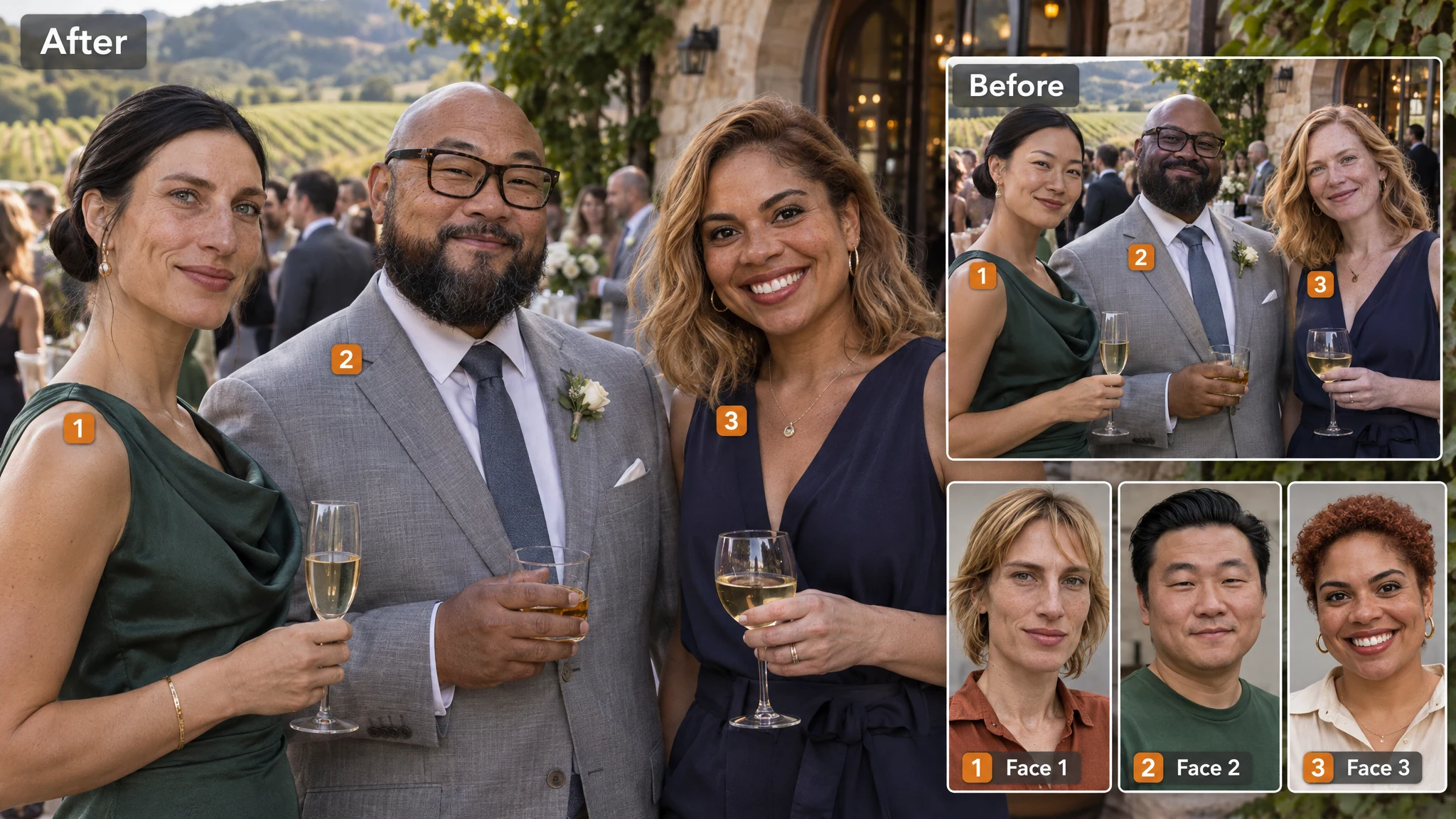
Different people. Different reference faces.

A group portrait should not mean one replacement face repeated across everyone. In our book-club example, three numbered people each have a separate reference portrait. Use the same approach in the tool: check an original-person thumbnail, add that person's reference, then move to the next pair. If you only need one person, the single-face AI photo tool is another option.

Three book-club members before and after a face swap, with numbered original-to-reference portrait pairings.

Swap a few faces. Not the whole group.

Sometimes two people are all the joke needs. In our office comparison, people 2 and 4 receive reference faces while people 1 and 3 are marked Keep. Select only the people you want to change. To leave someone out after selecting them, deselect their thumbnail; removing their reference photo alone does not cancel the selection. Unselected people are left out of the replacement request, but check the whole output before sharing it.

Four office colleagues with only the second and fourth faces replaced; the other two people remain unchanged.

Look closer before you share.

A convincing group picture needs more than a good first glance. Our lunch example places each reference beside a crop of the generated face, making it easier to compare the pairs. Check the intended identity first, then the face angle, expression, glasses and edges. The reference supplies the replacement face, while the original provides the pose, clothing and setting. If one person looks wrong, review that pair rather than judging only the overall scene.

Two lunch guests with a result photo and paired reference portraits and result-face details.

GET YOUR PHOTO READY FOR THE SWAP

A little preparation makes the choices easier. Keep the group photo and reference portraits separate, and check each person before starting the replacement.

Swap faces in your photo

One group photo, up to four selected people

Start with one original photo and choose 1–4 detected people. Your original can contain a larger group; the limit is how many people you select for replacement, not how many appear in the picture. Choose the intended people from the returned thumbnails. If someone is missing, try a clearer original with a larger, more visible face.

A clear portrait for each reference

Choose a photo with one recognizable face, visible features and little blur. A similar face angle is a useful starting point. Avoid a reference group shot that leaves it unclear which person you mean. You can reuse a portrait, but add it separately to each intended person's slot.

Photos up to 20 MB each

The original and every reference portrait accept JPG/JPEG, MPO, PNG, WebP, HEIC, HEIF, AVIF, BMP and TIFF. You can upload the original file even when a browser preview is unavailable. Start from a clear source rather than repeatedly saving a compressed copy. Photo mode does not have an HD switch, and upload support is not a guarantee of a particular output resolution.

Three credits for the task, not each face

A multiple-face photo task uses 3 credits whether you select one person or four. Start without an account using the daily free allowance. The first Generate reserves the task's credits for analysis; the second uses that same reservation. See the FAQ below for charging and reset details.

Your group photo, ready to download

Download your finished photo without a watermark. Completed results are available for one hour, so save the PNG while it is ready. Keep the original and references if you want to compare them later; History is not a permanent album.

MAKE THE GROUP SHOT PART OF THE FUN

These generated photo examples use separate reference portraits for people sharing one scene. Start with a picture you have permission to edit; the tool replaces faces, not the setting or the outfits.

Three graduates in a courtyard with an original photo, three reference faces and a generated group face-swap result.

A graduation picture with a new cast

Our courtyard example pairs three graduates with three reference faces. For a playful class keepsake, decide who should receive each face before uploading the references. Treat it as an edited celebration picture, not a replacement for the original record.

Three adults in a garden, with before-and-after group photos and separate replacement portraits.

A familiar scene, a different family portrait

The garden comparison keeps the scene as the shared starting point and gives three adults separate references. Choose an original that already has the group arrangement you want. This is a face swap, not a way to add missing relatives or create a new pose.

Four recreational softball teammates with an original group photo, four face references and a generated face-swap result.

A team photo for the next get-together

Four softball teammates show how a whole selected group can receive different faces. For an office party or team joke, agree on the idea with everyone involved and work through the pairs in order. Save the finished picture for a slideshow, invitation or group chat.

HOW TO SWAP MULTIPLE FACES IN ONE PHOTO

No manual layers or separate editing projects. Upload the scene once, choose the people, then check the finished picture.

Swap faces in your photo
  1. Upload your group photo

    Keep Photo and Multiple Faces selected. Choose your original photo, then click Generate to analyze it. Wait for the detected-person thumbnails before adding replacement portraits.

  2. Choose people and match references

    Select 1–4 people and add a reference photo to each selected person's slot. Check the original thumbnail beside every reference. Leave anyone you do not want to replace unselected.

  3. Generate and download your photo

    Click Generate again to apply the assignments. Review each face against its reference and inspect the rest of the picture. Download the watermark-free PNG within one hour of completion.

WHAT PHOTO FACE SWAP USERS SAY

Group-photo ideas from people using separate reference faces for parties, artwork and shared jokes.

5 / 5 from the 8 reviews below

I wanted a silly group picture for our staff appreciation slideshow, and this was perfect for the idea. We put ourselves into an over-the-top adventure scene, with a different reference photo for each teacher. What I loved was being able to set everyone up individually instead of repeating the same face across the picture. It turned a fairly ordinary slideshow idea into something with personality. Definitely the most fun I’ve had preparing a staff presentation!

Hannah SullivanElementary School Teacher

My cohost and I are always coming up with ridiculous concepts for episode artwork. This gives us a way to actually try them instead of leaving them in our notes. Putting both of us into the same photo, each with our own reference, is exactly what we needed. I especially appreciate that we can change selected people rather than everyone in the scene. For a show built around our personalities, that creative flexibility is a big win.

Tyler LawsonPodcast Host

Personal touches are what make a celebration memorable, and I love this for playful party pictures. My favorite idea was a movie-inspired group portrait for a friend’s birthday, using photos everyone had agreed to share. Being able to give each person their own reference made it feel genuinely made for that group—not like a generic party template. It’s such a lovely way to take a familiar theme and make the people celebrating the center of it.

Rachel WhitmanEvent Planner

I’ll happily spend an evening building something complicated, but I do not want to learn photo editing just to make a joke for my friends. This hits a sweet spot for me. I can choose the people I want to replace, match their reference photos, and try the idea without creating another account. No layers, no elaborate project setup. The ability to handle several faces in one picture is what makes it worth keeping bookmarked.

Brandon EllisSoftware Engineer

Our book club has a running joke about who would play whom in a movie adaptation, so making our own imaginary cast photo was irresistible. I love that each person can have a different reference face—it’s the whole reason the idea works. We could also leave some people in the original image out of the swap. It’s a wonderfully specific kind of fun: taking something we’ve talked about for months and finally giving it a picture.

Natalie FosterBook Club Organizer

I’m usually the one who gets volunteered to make the funny picture for our office celebrations. Having a tool specifically for multiple faces makes that job much more enjoyable. I can work through the people separately and keep track of which reference goes where, rather than trying to piece together several individual edits. That organized setup is what I appreciate most. It lets me focus on making something personal for the occasion instead of getting buried in the editing.

Cameron PriceReal Estate Agent

The appeal for me is being able to turn a group-photo idea into something playful without changing every person in the image. Sometimes just swapping two friends is enough to make the whole joke work. I love having that choice, along with separate reference photos for each person. The watermark-free download is a welcome touch, too—the finished picture gets to be about the people and the idea, not a logo across it.

Olivia RamseyTravel Blogger

For our staff party, I wanted something more entertaining than another collage of pictures from work. A ridiculous group portrait was exactly the right direction. What makes this tool fun is that everyone can bring their own reference photo and be part of the idea, rather than all getting the same face. The free credits made it easy to start experimenting. I came looking for a one-off party picture and left with ideas for the next celebration.

Ethan WallaceRestaurant Manager

GROUP PHOTO FACE SWAP
QUESTIONS, ANSWERED

Is multiple photo face swap free, and do I need an account?

You can start without signing up. There are 10 free credits per day, refreshing at 9 a.m. New York time. Each multiple-face photo task uses 3 credits from that shared allowance. Device and linked-account use share the allowance; signing in does not create a second allocation. Verification may be required. For more credits, see credit packs and pricing.

How many faces can I swap in one group photo?

You can select 1–4 detected people per task. The original photo may contain more people, but only those selected are submitted for replacement. This edits several faces in one picture; it is not batch processing of separate photos. If the person you need is missing from the thumbnails, try a clearer original with their face larger and less covered.

Can each person have a different reference face?

Yes. Give each selected person their own reference photo. You can also use one portrait for several people by adding it to their slots individually; there is no one-click apply-to-everyone button. Always check the original-person thumbnail beside each reference, especially when people in the group look similar.

Can I swap just two people and leave everyone else out?

Yes. Select those two people and add their references. Leave the other thumbnails unselected. If you change your mind, deselect a person instead of only deleting their reference. Only the selected people are submitted for replacement. Review each selected face and the overall scene in the finished image.

Which photo formats and file sizes can I upload?

Use JPG/JPEG, MPO, PNG, WebP, HEIC, HEIF, AVIF, BMP or TIFF for the original photo and each reference, up to 20 MB per file. Reference portraits are still photos. You can upload the original file even when a browser preview is unavailable. For a moving original, use multiple face swap for video or multiple face swap for GIFs. The multiple face swap overview explains the format choices.

Why is someone missing from the detected faces?

A face may be too small, blurred, turned away or covered to detect. Try a sharper original with a clearer view of that person. A tighter crop can help only if it keeps the people you intend to use. Changing the reference portrait cannot fix a person missing from the original analysis. There is currently no manual add-person control.

How do I fix a wrong pairing or an unnatural-looking face?

First check whether the right reference is assigned to the right original person. If the pair is correct, try a clearer single-face portrait with less filtering and a more similar angle. Change one input at a time and compare the same face with the previous result. Glasses, hair and strong turns can make blending harder. For help, contact support@aifaceswap.tools.

Why do I click Generate twice? Am I charged twice?

The first Generate analyzes the original and reserves 3 credits for the task. After you select people and add references, the second Generate uses the same reservation. You are not charged twice. Credits are charged when the task succeeds; if it fails, the reservation is released.

What can I download, and how long is the result available?

The photo result downloads as a PNG without a watermark. It is available for one hour after completion, so save your copy promptly. History is not permanent storage, and local file selections do not survive a full reload. See the Privacy Policy for upload and service-data retention.

What should I check before sharing a group face swap?

Use photos you have permission to edit and get agreement from the people involved. Check every selected face and the surrounding picture, then make clear that the image is edited when sharing it. Do not present a swap as proof of an event, an endorsement or someone else's identity. This tool changes faces; it does not grant rights to the source photo or a person's likeness.