Unable to continue

Aifaceswap

FREE AI MULTIPLE FACE SWAP FOR GIFS

Media typePhotoVideoGIF
Number of facesSingle FaceMultiple Faces

MAKE IT YOUR GROUP’S REACTION

One reaction. A different face for each person.

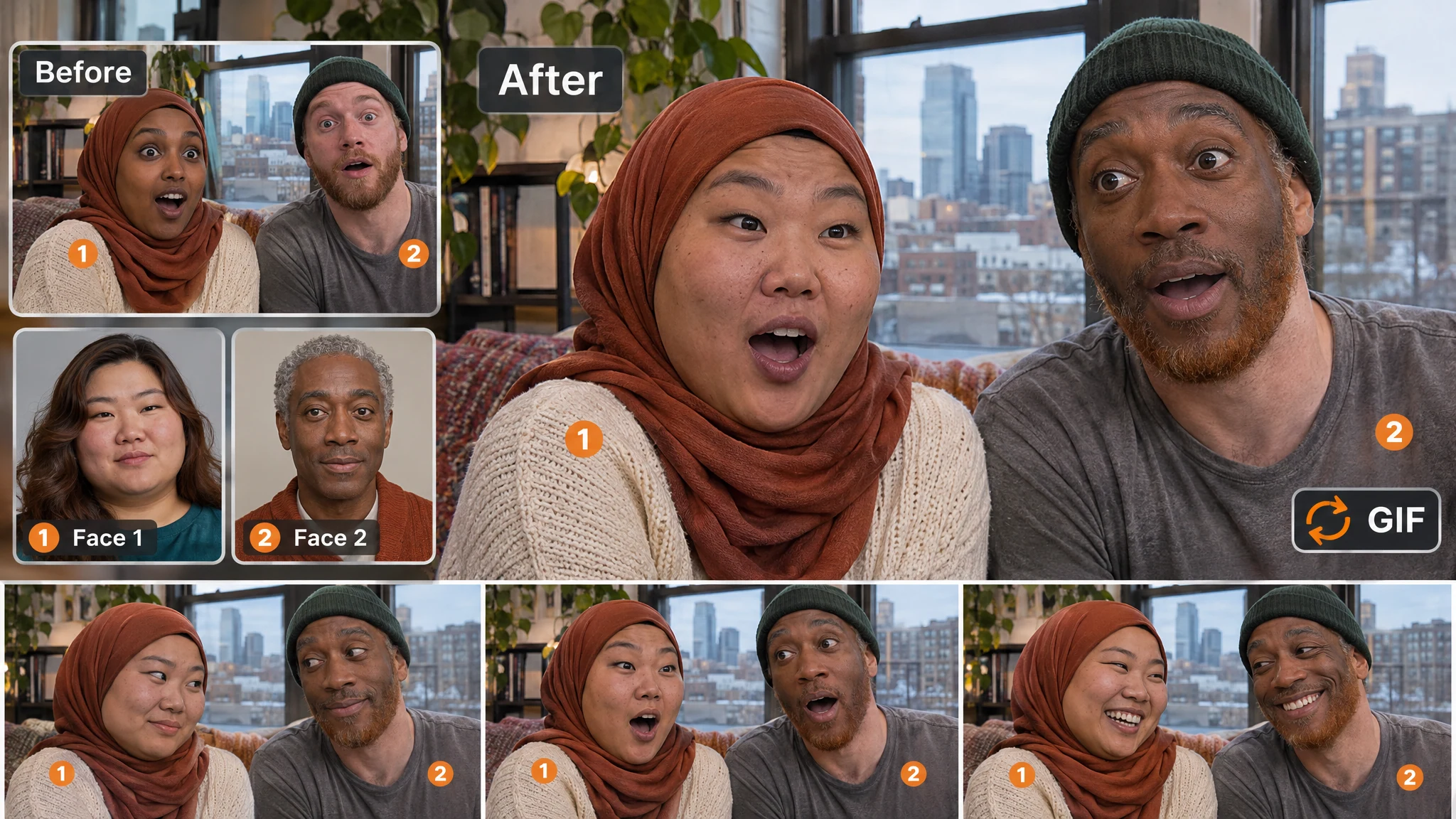
A good group reaction gives everyone a part. The studio illustration shows three people paired with three separate portraits. In the tool, use each detected-person thumbnail to choose the right reference, rather than relying on where someone stands in a moving frame. Add the same portrait to more than one slot if that is the joke, or use a different face for every person. Each pairing stays your choice.

Static studio GIF concept pairing three original faces with three separate replacement portraits.

Watch the loop. Not just the first frame.

The kitchen illustration sketches a reaction returning to its opening pose. Watch your downloaded GIF through a full loop, checking expressions, face turns and the transition from the last frame back to the first. Start with a source whose timing and reaction already suit your idea.

Static kitchen GIF-loop concept with two replacement portraits and three stills returning to the opening pose.

Choose who changes. Let the others sit this one out.

Sometimes two swapped faces and one familiar reaction make the best joke. The patio illustration uses that setup, replacing the outer pair. Select only the people you want to change; to remove someone from the task, deselect their thumbnail rather than just deleting their reference photo. Unselected people are not submitted for replacement, but review the whole picture before sharing. Need a still image instead? Try multiple face swap for photos.

Static patio GIF concept replacing only the outer two faces while keeping the middle person unchanged.

Match the expression. Start with a clear portrait.

The game-room close-ups show why the reference matters. Use a sharp, evenly lit face without strong filters, ideally at an angle close to the person in the GIF. A tiny or heavily compressed source face leaves less detail to work with; a larger reference alone cannot recover what the original does not show. If a pairing looks wrong, correct it before trying a different portrait. For a source with sound, choose multiple video face swap instead—GIFs have no audio track.

Static game-room GIF concept comparing two reference portraits with close crops of the face-swapped result.

A FEW THINGS BEFORE YOU SWAP

You need an animated original and a clear portrait for each person you select. A little preparation makes the face assignments easier and leaves more time for the fun part.

Start with your reaction GIF

Upload one GIF file up to 100 MB. You can upload the original file even when a browser preview is unavailable. Short, readable reactions are a useful starting point: heavy compression, tiny faces and fast movement can make a swap harder to judge. This is a GIF editor, not a video-to-GIF converter.

Bring a still photo for each face

Each selected person needs a still JPG/JPEG, MPO, PNG, WebP, HEIC, HEIF, AVIF, BMP or TIFF reference photo up to 20 MB. Choose a clear portrait with visible features and a similar face angle. The original is animated; the replacement references are still photos.

Use three credits for the group

A multiple-face GIF task costs 3 credits total for 1–4 selected people. You get 10 free credits a day, shared across the tools, with no account needed to begin. The allowance refreshes at 9 a.m. New York time.

Download, then check it where you share it

Save your completed animated GIF without a watermark within one hour. Open the file and watch the reaction before sending it. Different chat apps can display animation differently, so check the attachment rather than relying only on a thumbnail.

GIVE THE GROUP CHAT SOMETHING PERSONAL

An exaggerated celebration, a shared look or a perfectly timed pause can say more than a message. These illustrations suggest group GIF ideas; use source material and portraits you have permission to edit.

Static brunch GIF concept showing three replacement portraits and a repeated group-reaction sequence.

Make the birthday reaction a group effort

The brunch scene gives three friends their own reference faces. Choose a GIF with a reaction that fits the occasion and let everyone pick their portrait. It is a personal greeting built around a shared moment, rather than three unrelated edits.

Static rainy bus-shelter GIF concept with two distinct replacement faces and a three-still reaction strip.

Find the look your friends already know

The bus-shelter concept pairs two people in a small, familiar moment. A group reaction does not need a big performance: a glance or a pause can carry the joke. Pick a source with visible faces so the expression stays easy to read.

Static board-game café GIF concept with four replacement portraits and a four-person reaction strip.

Celebrate the win with the whole table

Four board-game players illustrate a team reaction with four individual portraits. Assign each friend deliberately, then watch the result together. Share it as an edited GIF, not as a recording of something those people actually did.

HOW TO SWAP MULTIPLE FACES IN A GIF

Set up the whole group in one task. The first Generate finds the people; the second uses your chosen face assignments.

Make your group GIF
  1. Upload your reaction GIF

    Keep GIF and Multiple Faces selected. Upload a GIF up to 100 MB, then click Generate to analyze it. This first stage reserves 3 credits for the task.

  2. Choose people and pair their portraits

    Select 1–4 detected people and add a still reference photo for each one. Check the original-person thumbnail beside every reference. Leave anyone you do not want to replace unselected.

  3. Generate your GIF and save it

    Click Generate again to process the pairings using the same credit reservation. Watch the completed animation, then download your watermark-free GIF within one hour. Check a full cycle before sending it to the group.

WHAT PEOPLE LIKE ABOUT GROUP GIFS

Feedback on individual face matching, selective replacements and making a shared GIF feel personal.

5 / 5 from the 8 reviews below

Finally, a GIF face swap tool that lets me replace different people with different faces! The individual matching is easy to follow, and I love being able to set up the whole group together. That’s the feature that makes this stand out for me—more creative control without making everything complicated.

Brooke AndersonDigital Marketing Specialist

The best part is handling multiple faces in one workflow. I don’t want to make separate edits and figure out how to put everything back together. Having the face assignments organized in one place is a huge plus. Straightforward, practical, and genuinely fun to get creative with.

Julian HayesMusic Producer

So easy to get started! I appreciate not having to create an account or install another app just to make a personalized GIF. The separate reference photos give me plenty of freedom, but the setup still feels approachable. Exactly the balance I want from a creative tool.

Paige ReynoldsFitness Coach

Selective face replacement is an excellent feature. Changing every person isn’t always what a GIF needs, so being able to choose specific faces gives me much more flexibility. I also like having a separate reference for each replacement. Those controls make this more useful than a basic all-or-nothing effect.

Wesley HartMotion Graphics Artist

Love the watermark-free downloads. A personalized GIF should put the people and the joke first, not cover them with branding. Pair that with multiple face assignments, and there’s a lot to like here. It’s a thoughtful combination of features that makes the finished GIF feel much more personal.

Audrey SinclairLifestyle Newsletter Editor

Giving everyone a different face is what makes this so much fun. You’re not limited to repeating the same replacement across the animation—you can actually decide who belongs in each role. That opens up far more possibilities for group GIFs. A simple concept with a lot of creative potential.

Grant MitchellBoard Game Designer

The free daily credits are a lovely touch. I can explore a GIF idea before deciding whether I need more, without signing up first. I also appreciate how clearly the individual face choices are separated. It makes a multi-person edit feel manageable rather than intimidating.

Leah MontgomeryLanguage Tutor

Focused tools like this are my favorite. I want to swap several faces in a GIF, choose the right reference for each person, and download it without a watermark—not navigate an entire editing suite. This brings together the options I care about without burying the idea under unnecessary extras.

Owen FletcherAudio Engineer

MULTIPLE GIF FACE SWAP
QUESTIONS, ANSWERED

Can I swap multiple faces in a GIF for free without signing up?

Yes. You can start without an account using 10 free credits per day, shared across the tools. A multiple-face GIF task uses 3 credits total, not 3 per person. The allowance refreshes at 9 a.m. New York time. Guest and linked-account use share the allowance, so signing in does not create another daily allocation. Human verification may be required.

Can different people in one GIF have different faces?

Yes. Each selected person has a separate reference-photo slot. Use different portraits for different people, or add the same portrait to several slots if you want to repeat a face. Multiple faces means several people in one animation, not a batch of separate GIF files. For just one person, you can use the single-face AI GIF tool.

Can I change just some people in a group GIF?

Yes. Choose only the detected people you want to replace. If you change your mind, deselect the person’s thumbnail; clearing a reference photo alone does not remove that person from your selection. The request includes only your selected pairings. Review each selected face, unselected people and the overall scene through a full loop.

How many faces can I select?

You can select 1–4 detected people in one task. More people may appear in the original GIF. Choose from the thumbnails returned by the analysis. If someone is missing, try a clearer original with a larger, more visible face. There is no manual add-person control for someone the analysis missed.

Which files can I upload, and what are the size limits?

Upload an original GIF up to 100 MB. Each reference must be a still JPG/JPEG, MPO, PNG, WebP, HEIC, HEIF, AVIF, BMP or TIFF photo up to 20 MB. You can upload the original file even when a browser preview is unavailable. Use a still portrait rather than a GIF for each reference. Use the video tool for an MP4 or other video source. See the multiple face swap overview for the format choices.

Why is a person missing from the detected faces?

A face may be very small, blurred, hidden or turned away. Try a clearer original GIF in which that person’s features are visible. Replacing the reference portrait does not fix a person missing from the original analysis. If only some people are detected, you can work with those people or choose another source with clearer faces.

How can I reduce flickering or a wrong-looking face?

First check that each portrait belongs to the correct original-person thumbnail. Then watch where the problem happens: a fast head turn, a hand over a face, a heavily compressed frame or the loop boundary. Try a clearer portrait with a closer face angle, or a simpler source GIF. Choose an original with timing and a loop that suit your idea, then compare the full animation after adjusting a portrait.

Why are there two Generate steps? Do both cost credits?

No. The first Generate analyzes your GIF and reserves 3 credits. Once you have selected people and added portraits, the second Generate processes those assignments against the same reservation. Credits are settled when the task succeeds; a failed task releases the reservation. Two Generate clicks are stages of one task, not two separate charges.

Is the download an animated GIF without a watermark?

Yes. The completed result downloads as an animated GIF without a watermark. Open the downloaded file to check the animation before sharing it; a thumbnail alone may show only a still frame. GIF is an image format with no audio track, so it does not carry music, speech or the original sound from a video.

What does HD do, and why might my preview look still?

HD is an optional setting, off by default. It is not a guarantee of a fixed resolution, lossless compression or restored detail in a poor source. Separately, if your system requests reduced motion, the tool’s image preview shows a still frame. That preview preference does not turn the downloaded GIF into a still photo. Check the downloaded animation in a viewer with playback enabled.

Can I recover a task after refreshing, and when should I download?

An accepted running task can be restored after a refresh when the service recognizes the same user or guest. Unsubmitted local files do not survive a full reload. Download a completed GIF within one hour; do not rely on History to recover it after refreshing or changing devices. See the Privacy Policy for upload and service-data retention.

What should I check before sharing a personalized GIF?

Get permission to use the original GIF and the reference portraits, and involve the people whose likenesses you are editing. Watch the full animation and make clear that it is edited when you share it. Do not use it to imply a real event, identity or endorsement. Files are processed online, so choose material you are comfortable uploading. For help, contact support@aifaceswap.tools.

YOUR FRIENDS. YOUR KIND OF REACTION.

Pick a reaction, pair the faces and make it yours to share. Start with free daily credits, no sign-up required, and download your group GIF without a watermark.