Unable to continue

Aifaceswap

FREE AI MULTIPLE FACE SWAP FOR VIDEOS

Media typePhotoVideoGIF
Number of facesSingle FaceMultiple Faces

MAKE THE SCENE YOUR OWN

Different people. Their own reference faces.

The gym illustration pairs three original-person thumbnails with three different portraits. Follow that same person-by-person approach in the tool: select a detected person, add their reference photo and check the pairing before moving on. Use the thumbnail as your guide, not “the person on the left”—people can change positions in a video. You can reuse a portrait by adding it to separate slots, but there is no apply-to-everyone button.

Static gym-video illustration pairing three original faces with three individual replacement portraits.

Check the whole clip. Not just a good frame.

The theater illustration uses three annotated moments to explain a useful review habit. In your actual result, check the beginning, head turns, overlaps and any moment someone leaves and returns. Follow each selected person through those moments and compare their face with the assigned portrait. If you want to adjust a face, check its reference first, then try clearer source footage or a better-matched portrait.

Static theater rehearsal illustration showing two replacement identities across three annotated moments.

Choose the people. Leave the rest out.

Not every person needs a new face. The mural illustration replaces the outer two people and marks the middle person to keep. Select only the people you want to replace. If you change your mind, deselect their thumbnail; deleting a reference photo alone does not cancel that person's selection. Only the selected people are submitted for replacement. Review them and the overall scene throughout the finished clip.

Static mural-event frame comparison replacing only the outer two faces and keeping the center volunteer unchanged.

One shared scene. A cast you choose.

The bicycle-restoration illustration starts with two people already sharing an activity. Choose an original clip with the setting, actions and timing you want, then plan the face assignments around that scene. This tool replaces faces; it does not add missing participants, rewrite a conversation or create new camera angles. For still images instead, use multiple face swap for photos.

Static garage-video face-swap illustration with two bicycle restorers and separate reference portraits.

GET YOUR VIDEO READY FOR THE SWAP

A few checks before uploading make the person-by-person setup easier. Keep the original clip separate from the reference portraits and save the final result promptly.

A short clip with recognizable faces

Upload one video up to 60 seconds and 100 MB. MP4 is a practical starting point; processing compatibility depends on the video codec. You can upload the original file even when a browser preview is unavailable.

A clear photo for each selected person

Use a JPG/JPEG, MPO, PNG, WebP, HEIC, HEIF, AVIF, BMP or TIFF portrait up to 20 MB. Favor visible facial features, even lighting and a similar angle to the person in the clip. Avoid heavily filtered portraits and reference group shots that make the intended face unclear.

Five credits for the task, not each face

A multiple-face video task uses 5 credits for 1–4 selected people. The daily free allowance is 10 credits, and you can start without an account. Analysis reserves the credits; processing uses the same reservation. Failed tasks release it, while successful tasks settle the charge.

Save the MP4 while it is available

Download the completed video without a watermark and with its original audio. Play it through to check the face assignments and sound before sharing. The result is available for one hour after completion; History is not a permanent video library.

GIVE YOUR GROUP A PART IN THE SCENE

Explore group-edit ideas, from a rehearsal with friends to a shared reaction. Use the scene illustrations to plan your cast and face pairings. Start with footage and portraits you have permission to use, and involve the people whose likenesses you are using.

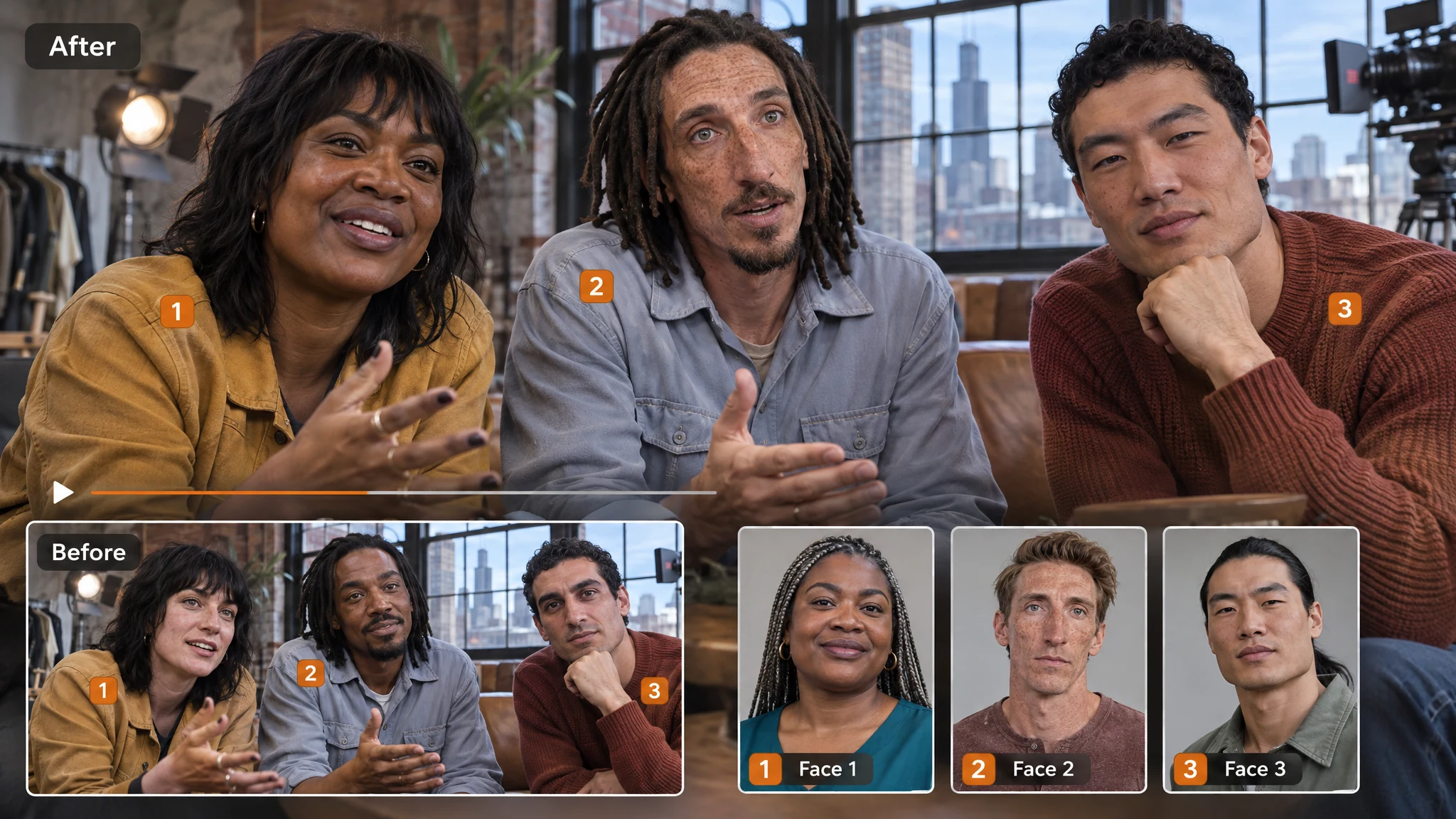
Static card-rehearsal video illustration with three original performers and three individually replaced faces.

Recast a rehearsal with friends

The card-rehearsal scene pairs three performers with separate portraits. For a film-club sketch or a friendly surprise, agree on the cast first and assign each reference deliberately. Keep an original copy so everyone can compare the idea with the unedited scene.

Static listening-room video-frame comparison with two music reviewers and two separate face references.

Make the conversation part of the joke

Two music reviewers illustrate an edit built around a shared exchange. Pick a clip whose timing already works for the joke, give each selected person a reference and check the entire result with sound. Face replacement does not rewrite speech or make someone say new words.

Static tabletop-game video illustration with four original people, four replacement portraits and a group result.

Bring the group chat into the game

The tabletop illustration gives four people individual face assignments. Let friends choose their own portraits, or select just the people needed for the idea. Share it as an edited group clip, not as a recording of something those people actually did.

HOW TO SWAP MULTIPLE FACES IN ONE VIDEO

Upload the scene once, match the people and generate the group edit. The two Generate clicks are stages of the same task, not two separate charges.

Swap faces in your video
  1. Upload and find the faces

    Keep Video and Multiple Faces selected. Choose a video up to 60 seconds and 100 MB, then click Generate to analyze it. Wait for the detected-person thumbnails before assigning reference photos.

  2. Choose people and add face photos

    Select 1–4 detected people. Add a still portrait to each selected person's slot and check every pairing. Leave anyone you do not want to replace unselected.

  3. Generate, review and download

    Click Generate again to process those assignments. Play the full result, paying attention to turns, overlaps and audio. Download the watermark-free MP4 within one hour of completion.

WHAT PEOPLE SEE IN A GROUP VIDEO

Creative ideas and feedback about separate face assignments, selected people and making a group clip feel personal.

5 / 5 from the 8 reviews below

A personalized video is so much more memorable than another slideshow. I love the idea of putting a couple into a playful scene together instead of making two separate face swaps. Being able to assign a different reference to each person is what makes this useful for me. It gives a lighthearted wedding surprise that extra personal touch—the kind of detail that makes it feel made for those two people.

Megan HollowayWedding Coordinator

Some jokes only work when both people are in the scene. That’s why the multiple-face option is such a big deal to me. I can cast different friends in different roles rather than building the entire joke around one replacement. My favorite part is choosing who not to change. Leaving one person in the original scene can make the whole concept funnier. That little bit of control opens up a lot of possibilities.

Jordan BlakeComedy Writer

Our dance crew has no shortage of ridiculous video ideas, and this is exactly the kind of tool that encourages us to try them. I love being able to choose different reference faces for different people in the same clip. It makes the concept feel like a group project rather than a filter everyone applies separately. For a playful introduction or an end-of-season surprise, there’s a lot to get excited about here.

Vanessa ColeDance Instructor

No extra account just to try a funny video idea? I’m already interested. Add the ability to put several friends into the same scene, and that’s something I actually want to experiment with. The separate face assignments are the real draw: everyone gets their own role instead of the same face appearing everywhere. It’s a much more personal way to build a joke around the people my community already knows.

Austin BennettGaming Streamer

Most of our family videos are lovely, but they’re also fairly predictable. This offers something completely different: a chance to make a silly little scene with relatives who want to join in. I especially like that we can select just a few people rather than change the entire group. It leaves room to build the surprise around particular personalities. That’s what makes the idea special to me—not an effect for its own sake, but something unmistakably ours.

Claire DonovanFamily Reunion Organizer

The casting possibilities are what hooked me. Giving different people their own reference faces in one video makes this much more interesting than a single-person swap. We can plan a scene around a whole little cast, then decide which roles to replace and which to leave alone. I love tools that get people talking about what they could make next. This has exactly that kind of creative appeal.

Miles PrescottFilm Club President

I’m always looking for activities people can actually participate in, rather than just watch. A group video where everyone chooses their own reference photo has such a fun collaborative element. The person-by-person setup is a real plus because each participant gets a say in their part. I also appreciate the free credits for exploring an idea first. It makes trying something new feel approachable instead of turning it into another purchase to organize.

Brianna WellsRecreation Director

I don’t need another serious hobby. Sometimes I just want to put my friends into an absurd scene and send it to the group chat. This is appealing because it handles the part I care about: different faces for different people in one video. No sign-up is a welcome bonus, and a watermark-free download means the joke doesn’t come with an advertisement across it. Simple premise, plenty of room to have fun.

Noah ChandlerMechanical Engineer

MULTIPLE VIDEO FACE SWAP
QUESTIONS, ANSWERED

Is multiple face swap video online free, and do I need to sign up?

Yes, you can start without signing up, using 10 free credits per day. A multiple-face video task uses 5 credits from that shared allowance. It refreshes at 9 a.m. New York time. Device and linked-account use share the allowance; signing in does not create a second allocation. Verification may be required.

Can I give different people different replacement faces?

Yes. Each selected person has their own reference-photo slot. Give different people different portraits, or reuse one portrait by adding it to each intended slot separately. This changes multiple faces in one video; it is not batch processing of several video files. For one person only, the single-face AI video tool is another option.

Can I swap only selected people in a group video?

Yes. Select the people you want to change and leave the others unselected. To remove someone from the swap, deselect their thumbnail rather than only clearing their reference photo. Only selected people are submitted for replacement, but check the surrounding picture and unselected faces in the output too.

How many people can I select in one video?

You can select 1–4 detected people per task. That is the replacement limit, not a rule that only four people may appear in the source clip. Choose the people needed for your edit from the available thumbnails. If someone is missing, try a clearer original with their face larger and less covered.

Which video files and reference photos can I upload?

Upload one video up to 60 seconds and 100 MB. Processing compatibility depends on the video codec. Reference faces support still JPG/JPEG, MPO, PNG, WebP, HEIC, HEIF, AVIF, BMP and TIFF photos, up to 20 MB each. You can upload the original file even when a browser preview is unavailable. For a still original or a loop, use group-photo face swap or multiple face swap for GIFs. The multiple face swap overview explains the format choices.

Why is someone missing from the detected faces?

The face may be too small, blurred, turned away or covered. Try source footage with a clearer view of that person and fewer obstructions. Changing a replacement portrait does not fix someone missing from the original analysis. Select from the detected-person thumbnails; there is no manual add-person control.

What should I do if faces look wrong during movement?

Check that the intended portrait is assigned to the correct original-person thumbnail. Then look at the difficult moments: strong turns, crossed faces, hands over a face or re-entry into the scene. Try a clearer, less-filtered portrait with a more similar angle or a simpler original clip. After a change, follow the same person through the full clip and compare those moments with the previous result. Contact support@aifaceswap.tools if you need help.

Why do I click Generate twice, and am I charged twice?

The first Generate analyzes the video and reserves 5 credits for the task. After you choose people and upload references, the second Generate uses that same reservation. You are not charged twice. Credits settle when the task succeeds; a failed task releases its reservation.

Does the download have a watermark, and does it keep the original sound?

The finished video downloads as an MP4 without a watermark and keeps the original audio if the source has an audio track. Face swapping does not clone voices, rewrite dialogue or create speech for a silent clip. Play the downloaded file through to check the sound, timing and face assignments before sharing it.

What does the HD option do?

Video mode includes an optional HD setting, off by default. You can enable it before starting the task. It is not a promise of a fixed resolution, lossless output or recovery of details missing from the source. Start with clear footage and inspect the downloaded result rather than assuming the setting will fix a difficult input.

Will a running task survive a refresh, and how long can I download it?

An accepted ongoing task can be restored after a refresh when the service identifies the same user or guest. Unsubmitted local file selections do not survive a full reload. Completed results are available for one hour, so save the MP4 promptly; History is not permanent storage. See the Privacy Policy for upload and service-data retention.

What should I check before uploading or sharing a group video?

Use footage and portraits you have permission to edit and get agreement from the people involved. Review the full clip, including unselected people, and make clear that it is edited when sharing it. Do not present a swap as evidence of a real event, endorsement or identity. Files are processed online, so choose material you are comfortable uploading. For questions about your data or an edit, contact support@aifaceswap.tools.

YOUR PEOPLE. A DIFFERENT CAST.

Choose the scene, match each selected person and give the group a different cast. Start with the free daily credits—no account needed—and save a watermark-free MP4 with the original sound.